Map names, not app code
Match a host name and port, then choose the target host and port. Your app can keep requesting port 443 while your local API listens on 5001.

Android Proxy Tunnel • Free Visual Studio extension
Let your Android Emulator reach the APIs running on your development machine, using the host names your app already calls. No swapping URLs for IP addresses. No editing the emulator's hosts file. No leaving Visual Studio.
For Visual Studio 2022 & 2026 on Windows.
Keep the URL. Change the destination.
api.myapp.local.example:443
Android Proxy Tunnel
127.0.0.1:5001
Your local service, with a certificate trusted by the emulator for the requested host name.
Inside the Android Emulator, localhost means the emulator, not your PC. Replacing a host name with 10.0.2.2 can disrupt host-based routing, cookies and certificate checks.
Android Proxy Tunnel puts the routing in a Visual Studio tool window instead. Map the host name and port your app requests to the local service you want to test, then point the emulator's proxy at it.
This works with clients that honour the emulator's HTTP proxy settings. HTTPS stays encrypted end to end: the extension does not decrypt traffic or bypass certificate validation.
Match a host name and port, then choose the target host and port. Your app can keep requesting port 443 while your local API listens on 5001.
HTTPS travels through a CONNECT tunnel without decryption, modification or re-signing. Your service still needs a valid certificate the emulator trusts.
Follow destinations, outcomes, bytes transferred and timings in the activity list. Select a connection to create a mapping without retyping the host name.
Unmapped destinations are refused by default. Enable Forward unmapped when you want normal onward access too; this option is only available with a loopback listener.
Set ports, bind address, timeouts and limits in Proxy Settings. Restart prompts and Reload or Overwrite choices make configuration changes explicit.
A dockable Visual Studio tool window with Dark, Light and High Contrast theme support, plus visible keyboard focus outlines.
Select a screenshot to enlarge it.
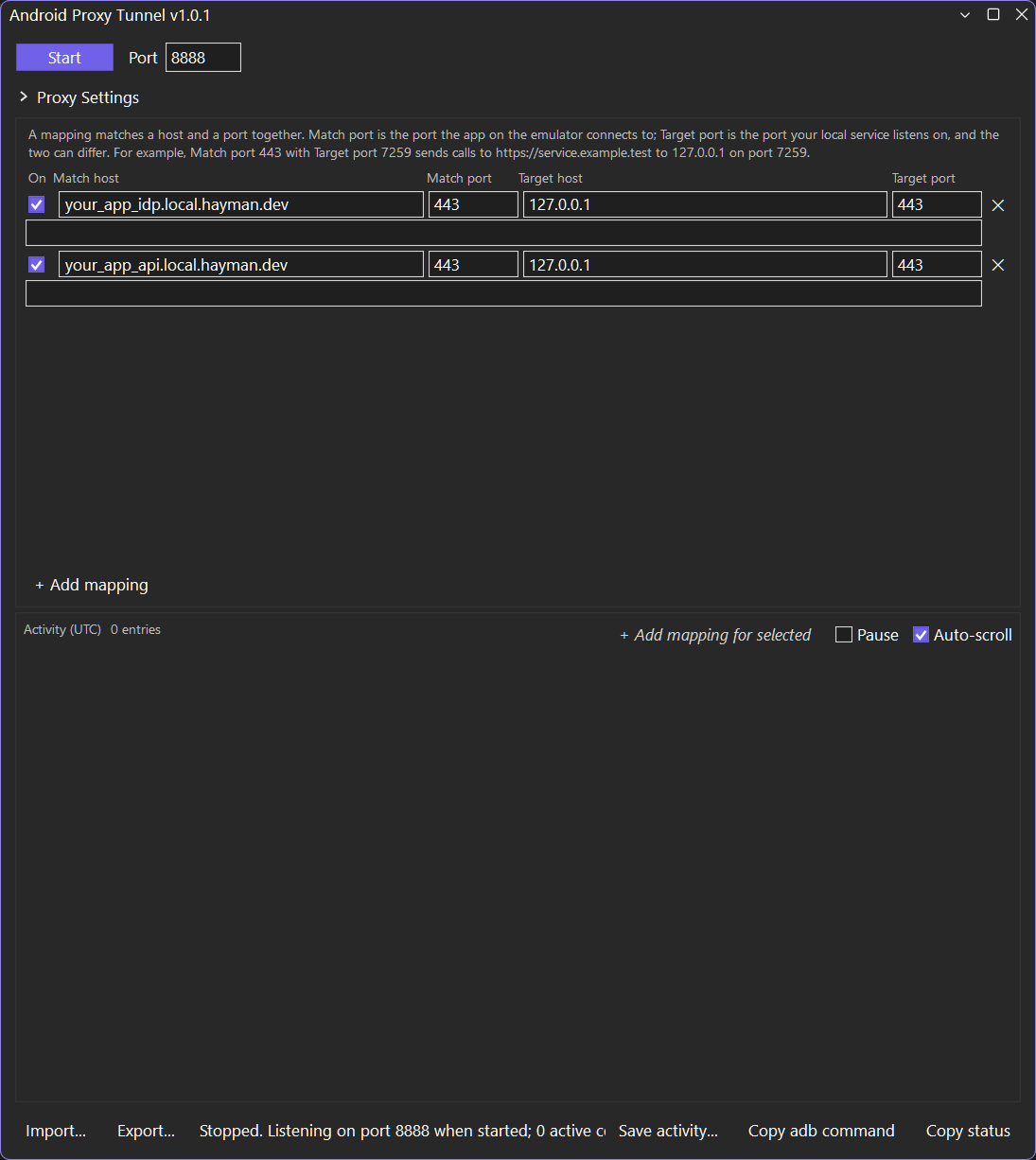
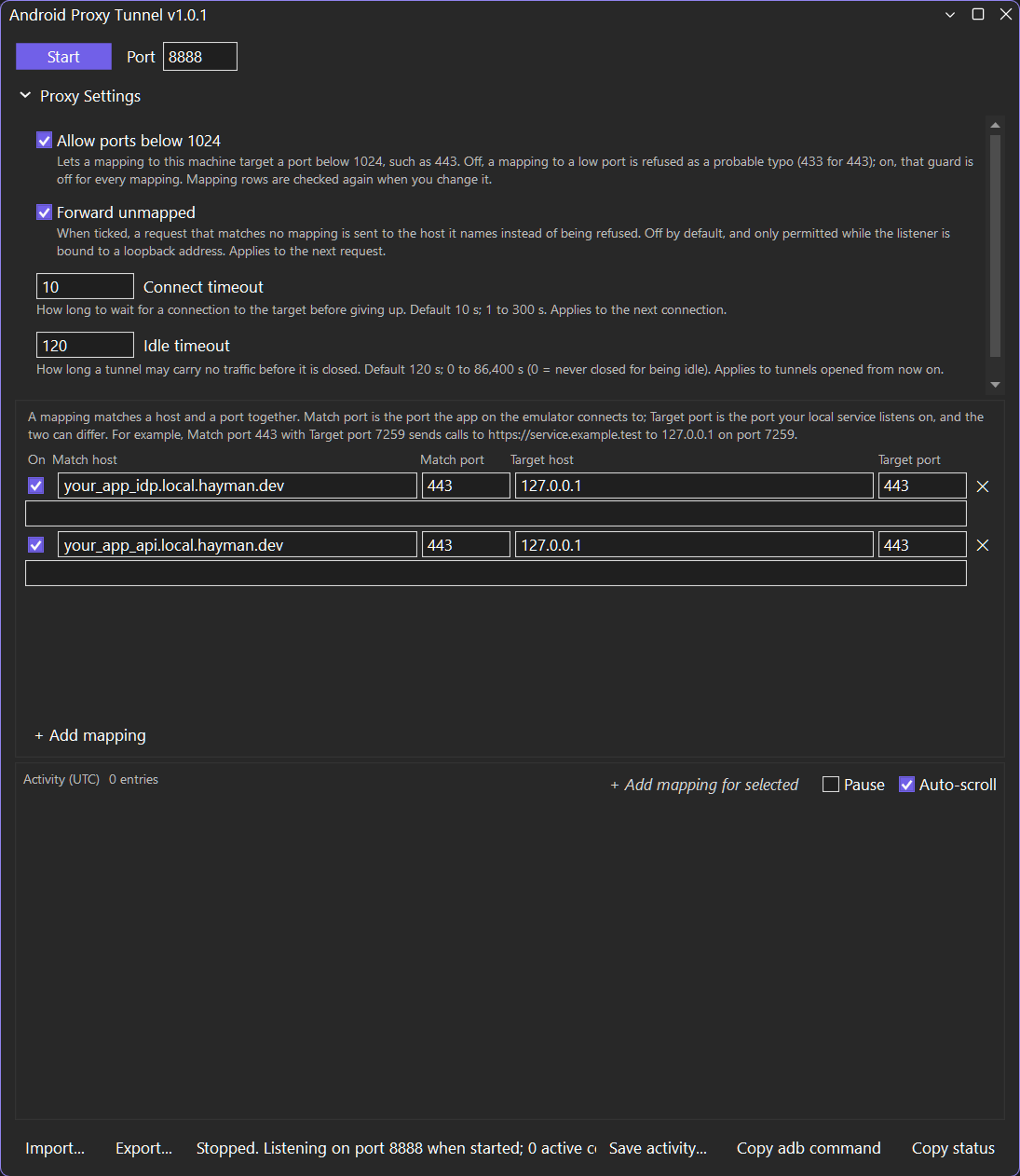
The listener binds to 127.0.0.1 by default. Exposing it beyond your workstation requires confirmation and displays a warning.
01 / Install
Install the free extension, then open View → Android Proxy Tunnel in Visual Studio.
02 / Map
Add the host name and Match port your app calls, set the target service address and port, then click Start.
03 / Connect
In Extended controls → Settings → Proxy, use a manual proxy of 127.0.0.1:8888 with the default listener. Run your app and watch the activity.
Bring local Android networking into Visual Studio, with host mapping you can see and control.
Also developing on Android? Explore Android Emulator File Browser.