Visual Studio on Windows
Visual Studio 2022 or 2026, 64-bit, in Community, Professional or Enterprise edition.

Android Proxy Tunnel • Support
Connect your Android Emulator to local development services. Start with the guide below, then check host mapping, HTTPS requirements and troubleshooting if a connection does not behave as expected.
Visual Studio 2022 or 2026, 64-bit, in Community, Professional or Enterprise edition.
An emulator with manual proxy configuration and an app or HTTP client that honours those proxy settings.
Know its target address and port. For HTTPS, the certificate must cover the requested host name and be trusted by the emulator and app.
Get Android Proxy Tunnel from the Visual Studio Marketplace. Complete the installation and restart Visual Studio if prompted.
In Visual Studio, select View → Android Proxy Tunnel. Start the local API or service you want the emulator to reach.
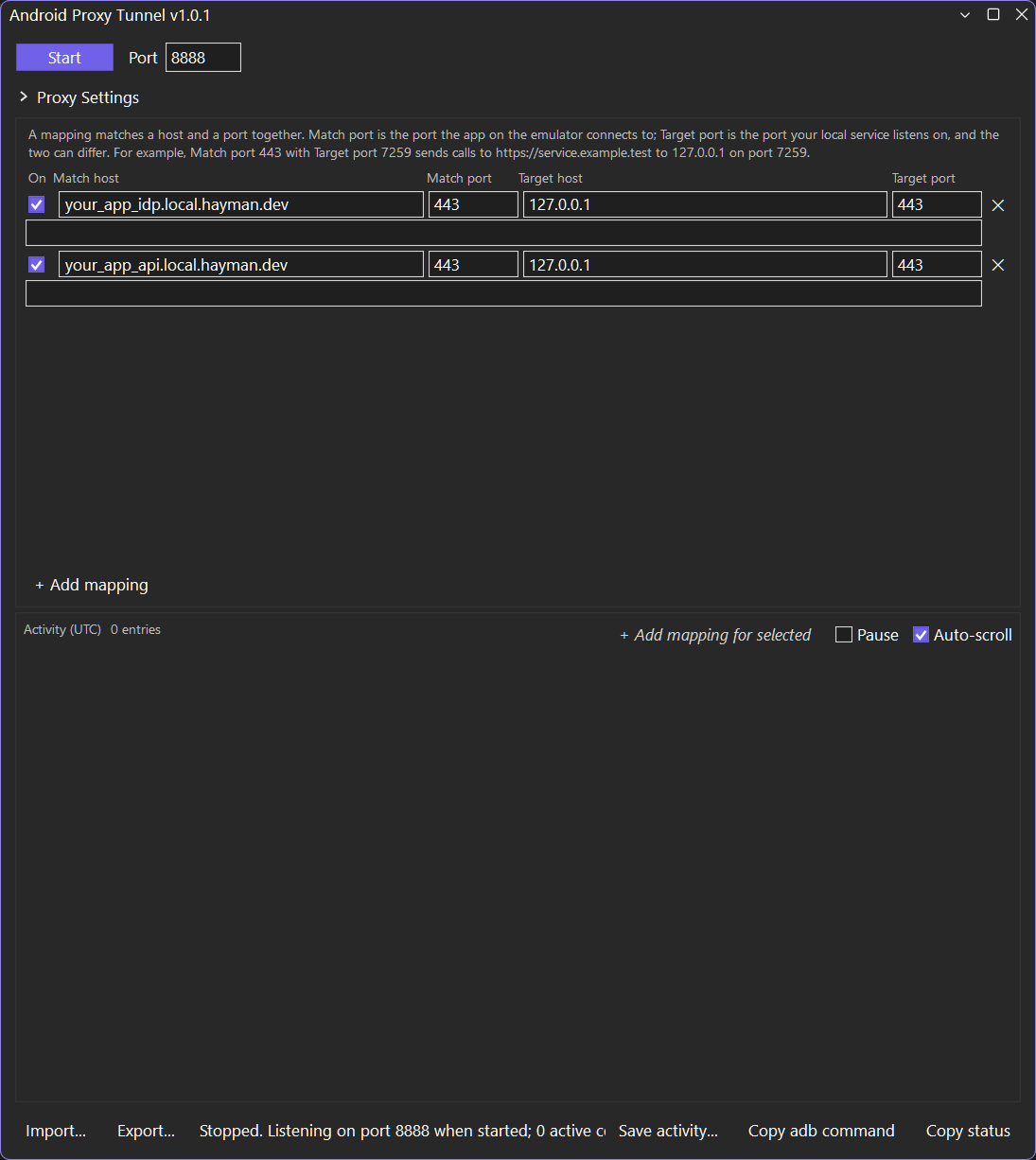
Click + Add mapping. Enter the Match host and Match port your app requests, then the Target host and Target port of your service. Keep the mapping enabled. Use a host name only, without a scheme or path.
Keep the default listener port 8888 and loopback bind address 127.0.0.1, then click Start. If the port is occupied, choose a free port and use it in the next step too.
Open the emulator's Extended controls (…) → Settings → Proxy. Select manual proxy configuration, set the host to 127.0.0.1 and the port to 8888, then apply. These are the emulator control panel's proxy settings, not an address entered in your app.
Make a request from your app and check the activity list for the destination and outcome. Match both the host name and port. When finished, stop the proxy and remove the emulator's manual proxy setting to restore normal access.
A tunnel changes where the connection goes, not which certificate your app expects. The target must present a certificate for the requested host name that your emulator and app trust. A certificate trusted only by Windows is not automatically trusted by Android. Do not disable certificate validation to work around an error.
If the app requests https://api.myapp.local.example/ and your local HTTPS service listens on port 5001, use:
The match port and target port do not need to be the same. Port 443 at the app does not require the low-port option when the local target is 5001. The target must still serve HTTPS with an appropriate trusted certificate.
127.0.0.1:8888. Keep loopback unless you deliberately need network access. Exposing the listener requires confirmation and displays a warning.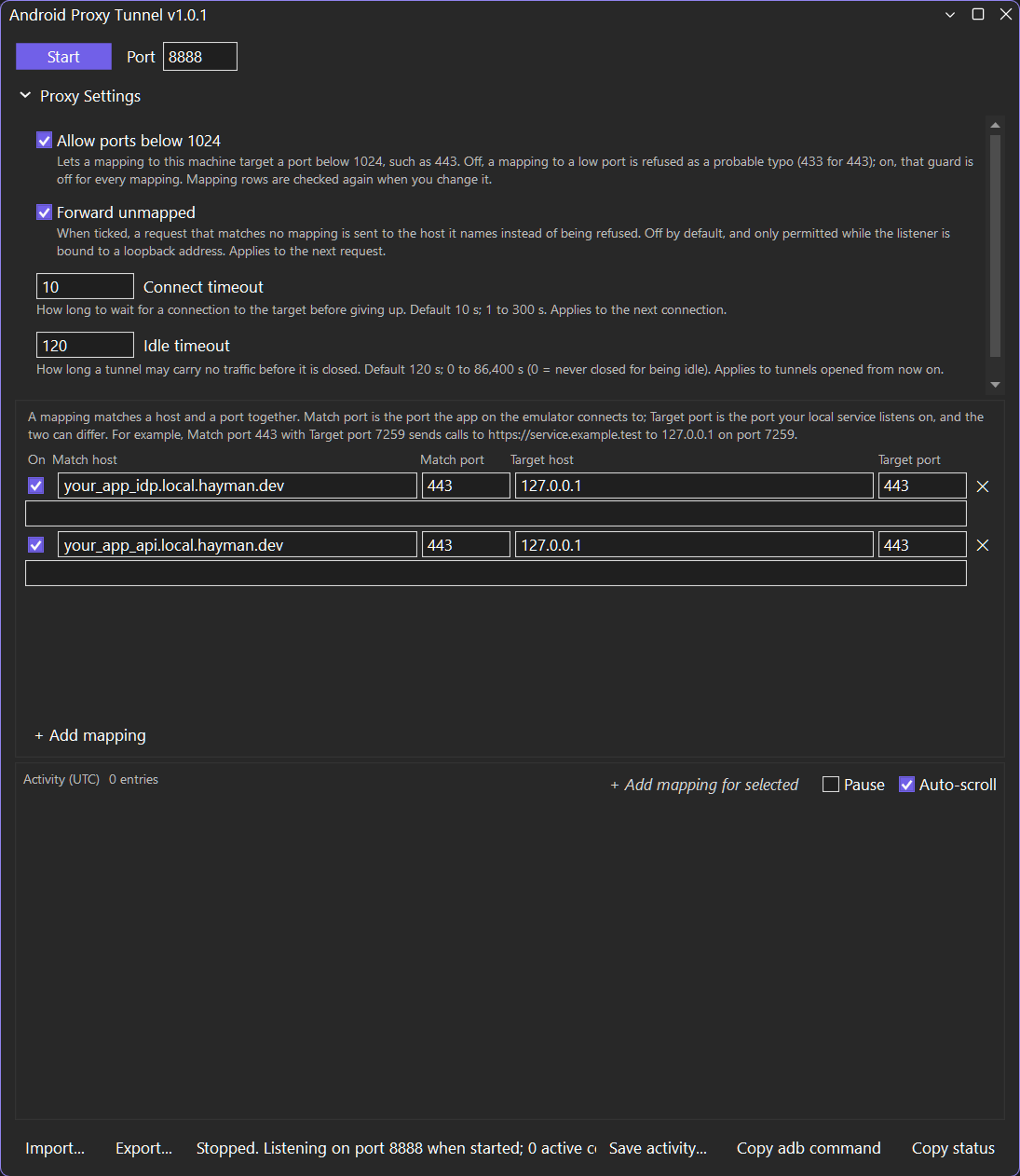
Check the proxy is started and the emulator's manual proxy address and port match the listener. Confirm that your app's HTTP client honours the emulator's proxy settings. Clients that bypass the proxy will not appear here.
Check for an enabled mapping matching both the requested host name and port. An unmapped destination is refused while Forward unmapped is off. Also check the target service is running and reachable at its configured address and port; not every failure is an unmapped host.
Check that your service speaks HTTPS, its certificate covers the requested host name, and the certificate chain is trusted by Android and your app. Android Proxy Tunnel does not intercept TLS, install certificates or bypass certificate pinning.
Another process is using the configured port. Choose a free listener port in the tool window, restart the proxy if needed, and update the emulator proxy settings to use the same port.
Open Proxy Settings and enable Allow ports below 1024. This safeguard applies to the local target port, not simply to the port your app requests.
Unmapped destinations are blocked by default. Add the mappings you need or deliberately enable Forward unmapped with a loopback listener. When you stop using the tunnel, remove the emulator's manual proxy configuration.
Closing the tool window or solution stops the proxy. Reopen it and click Start when needed. Stop closes open connections after about five seconds, so in-progress transfers may be interrupted.
The tool window stores configuration locally in %APPDATA%\Android Proxy Tunnel\mappings.json. Prefer Proxy Settings for edits. If another tool changes the file, the window offers Reload or Overwrite.
Include your Visual Studio and extension versions, the listener settings, a redacted mapping, the activity outcome and steps to reproduce. Remove private host names, credentials and sensitive data before sharing screenshots or exported activity.