
Bulk laundry processing - simplified
Capture, process, and despatch laundry assets with RFID scanning, visual inspection, and automated reporting - all from a mobile device, tablet, or desktop.
How bulk laundry processing works in ATP
A simplified example of processing laundry from arrival to despatch — your actual workflow can be customised to your exact process.
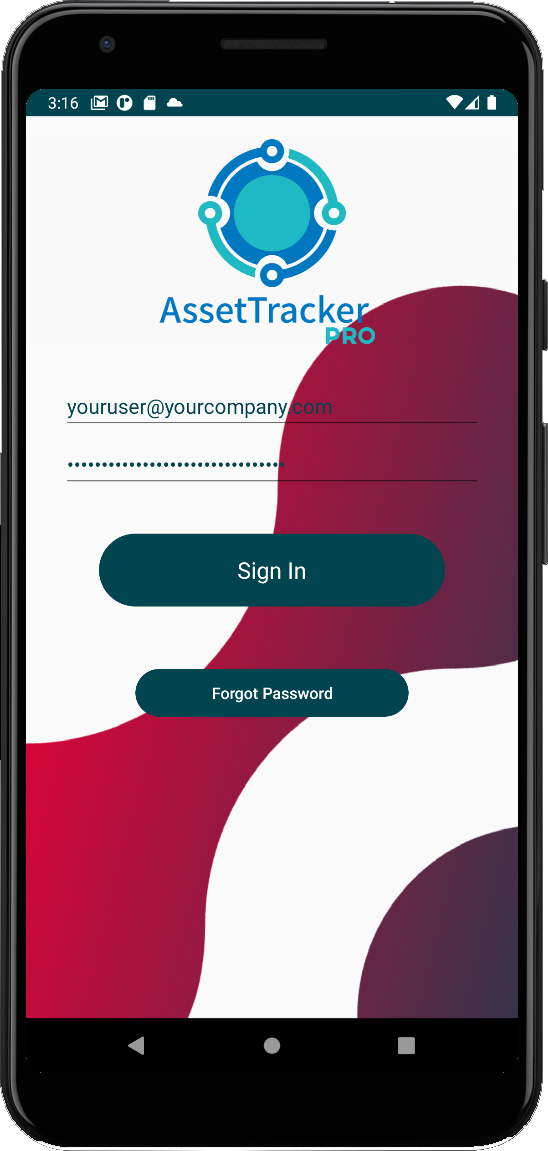
User signs into the ATP app
All user access is controlled via your private administration dashboard. Assign users individually or as groups. For shared devices, individual user IDs can be scanned from a barcode or RFID badge.
Select required workflow
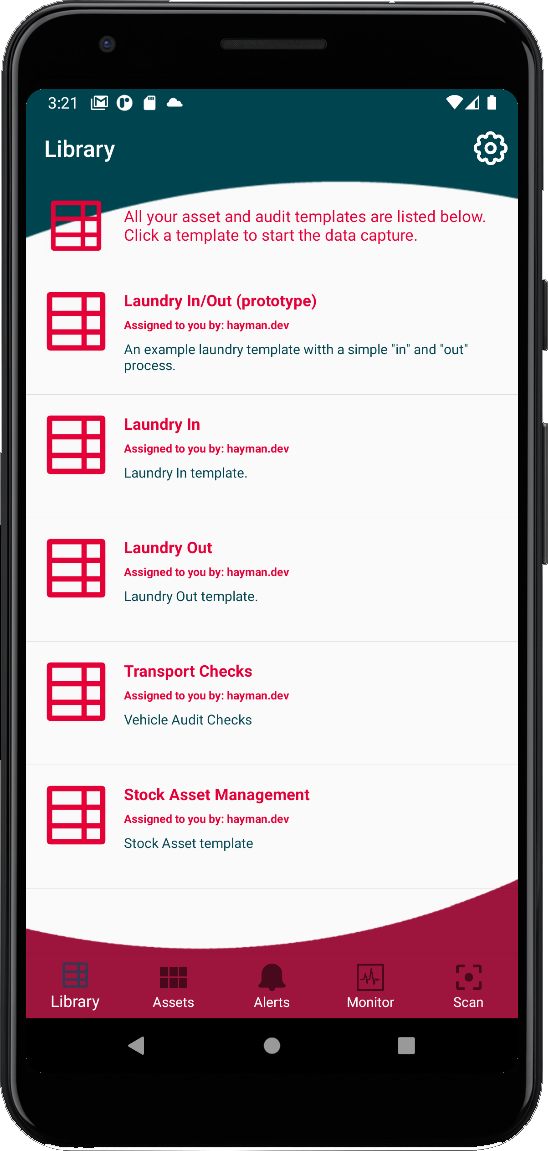
Once logged in, users see only the workflows assigned to them. Each workflow represents a different task or process, created by our Workflow Builder and customised to your requirements.
Choose the laundry-in workflow
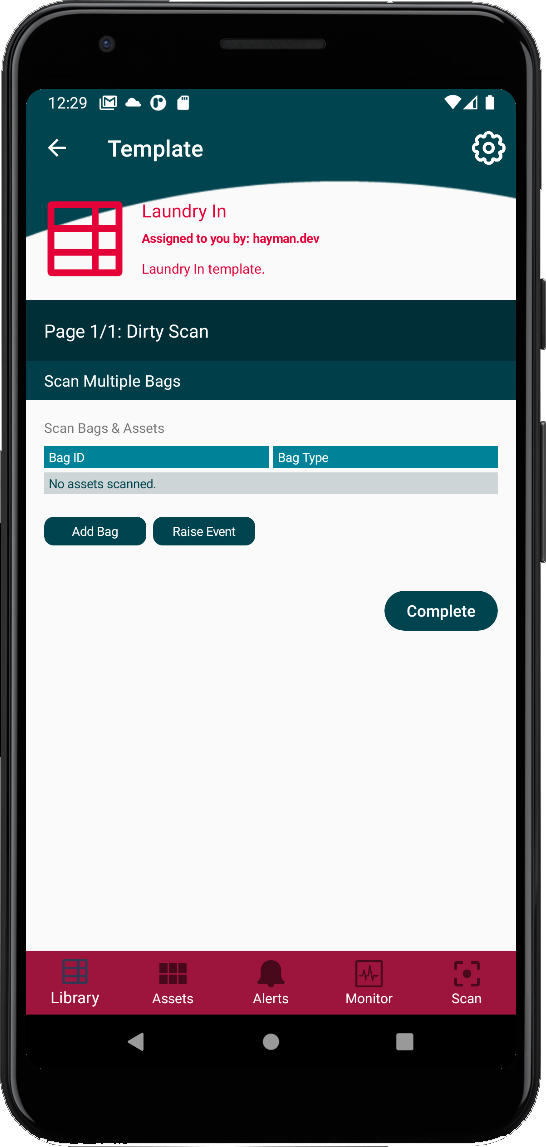
ATP creates a new "session" to track the time it takes a user to process assets. This table shows the current assets added. Columns can be customised to show the data fields that matter to you.
Scan first dirty bag at arrival point
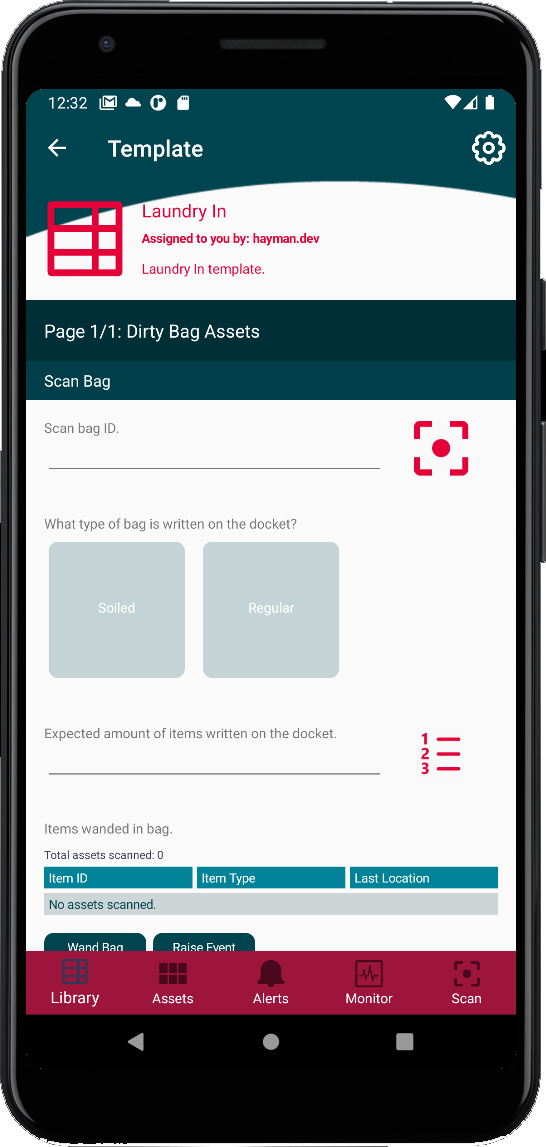
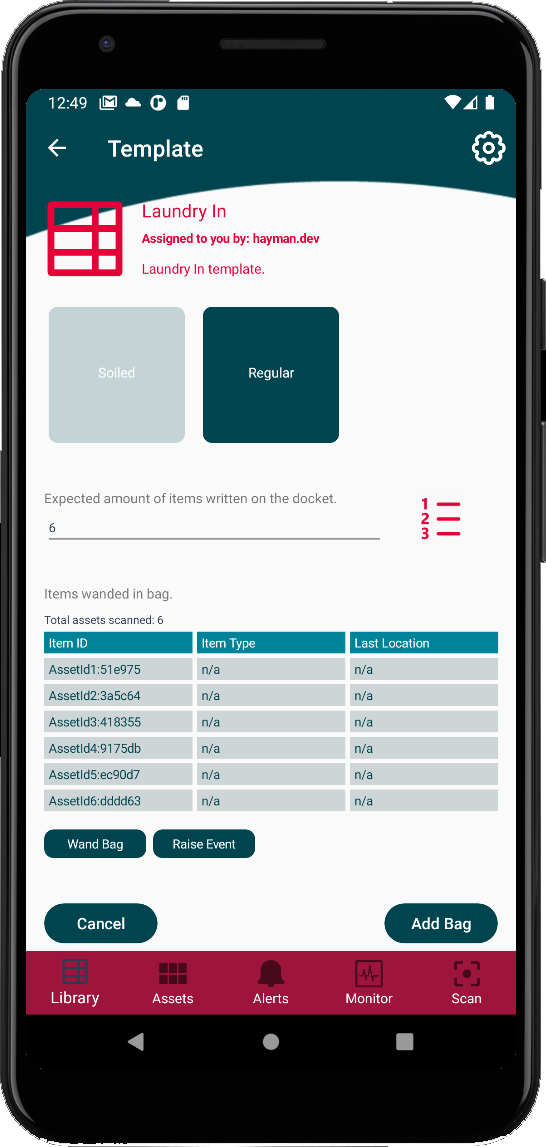
Soiled and regular laundry bags are scanned. Regular bags have their UDI barcodes scanned and RFID tags wanded. Soiled bags cannot be emptied by the user, so they are scanned and placed directly on the conveyor belt.
Visual inspection and load
Asset UDIs wanded by the user appear in the table. The user performs a visual count to ensure the physical amount matches what was wanded. Assets and the bag are loaded onto the conveyor belt for washing.
Add bag and continue session
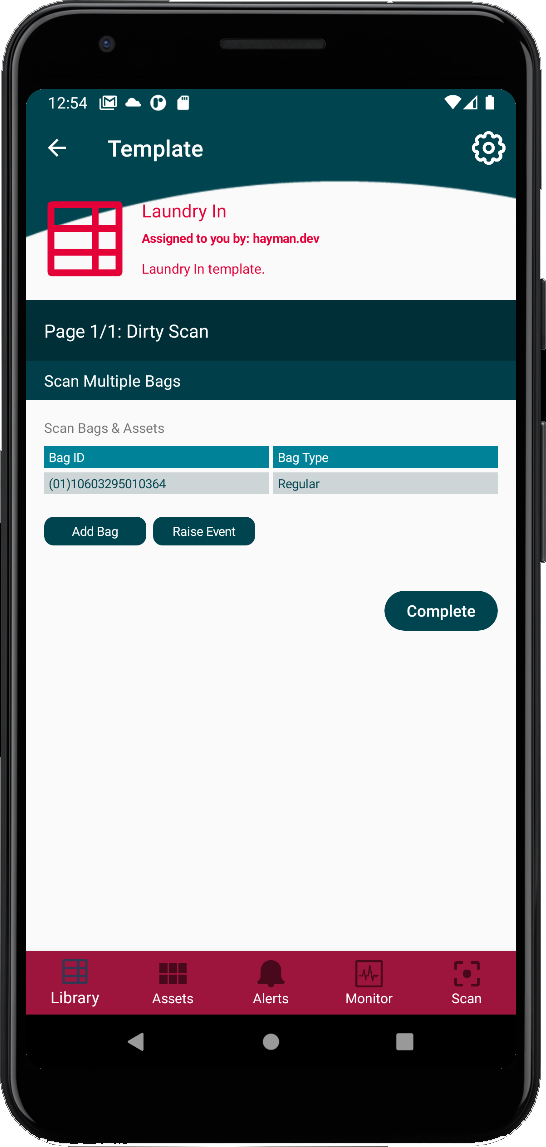
Tapping "Add Bag" stores the bag and its contents in ATP and returns the user to the initial session screen, ready for the next laundry bag to be scanned.
Raise unexpected events
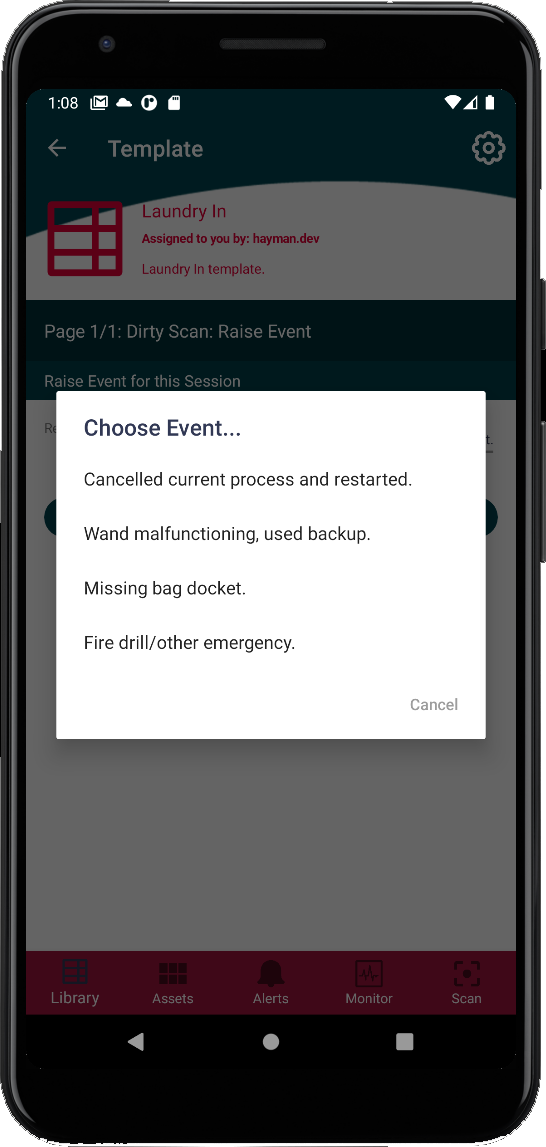
Users can raise events to warn managers of any issues encountered, such as missing RFID tags, damaged assets, or malfunctioning devices. Raising events can be customised to suit your needs.
Laundry-in workflow complete
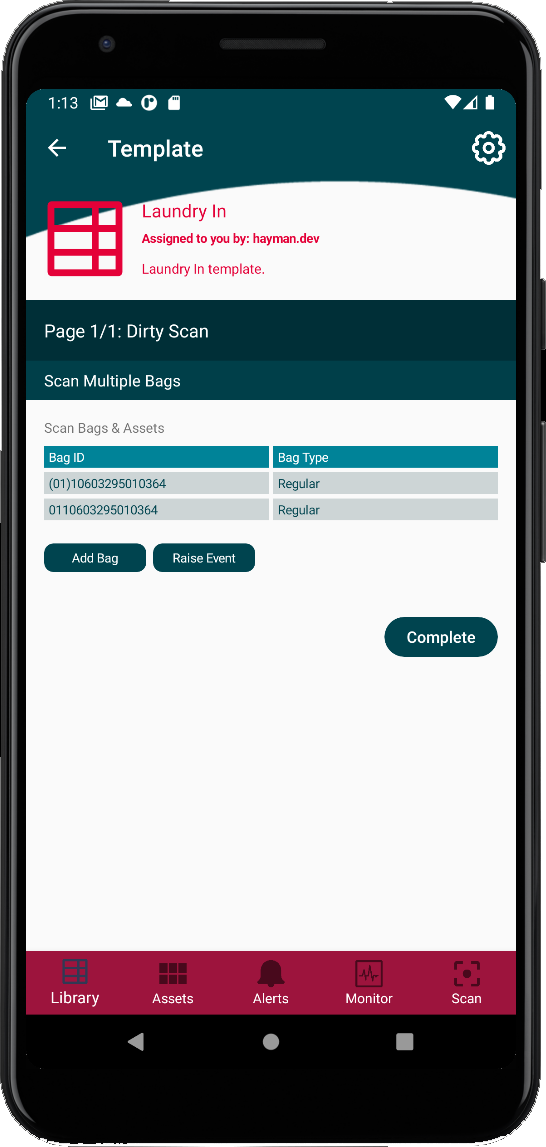
With no bags left to process, tapping "Complete" re-verifies all data and syncs to the ATP Server. If no connection is available, data is held securely on the device and syncs when reconnected.
Choose laundry dispatch workflow
With clean laundry ready for dispatch, the user decides what needs to be sent where and at what quantity. Any dirty items found are sent back via a "re-processing" template, allowing cost calculations via reporting.
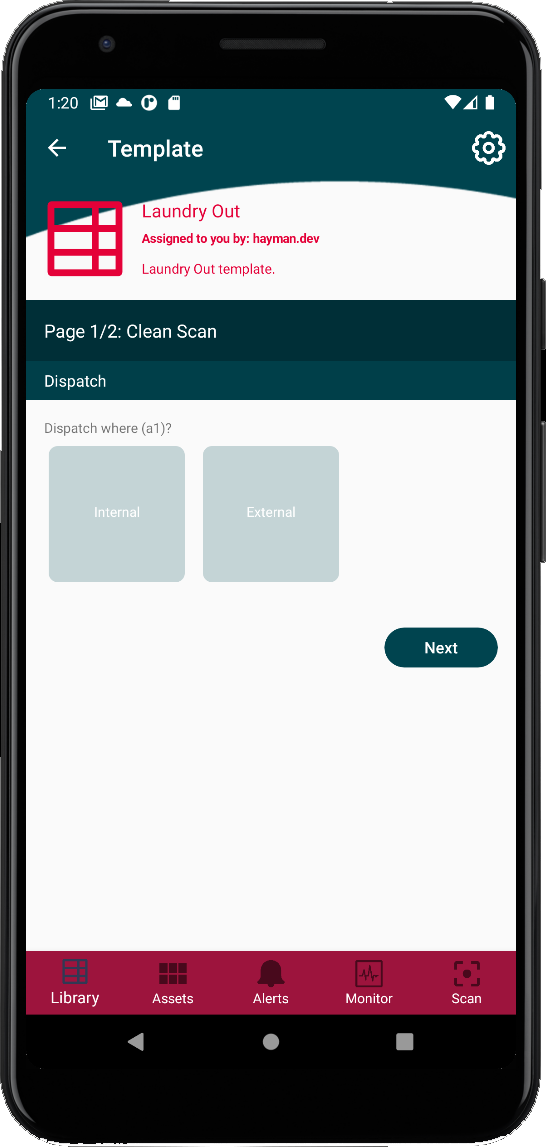
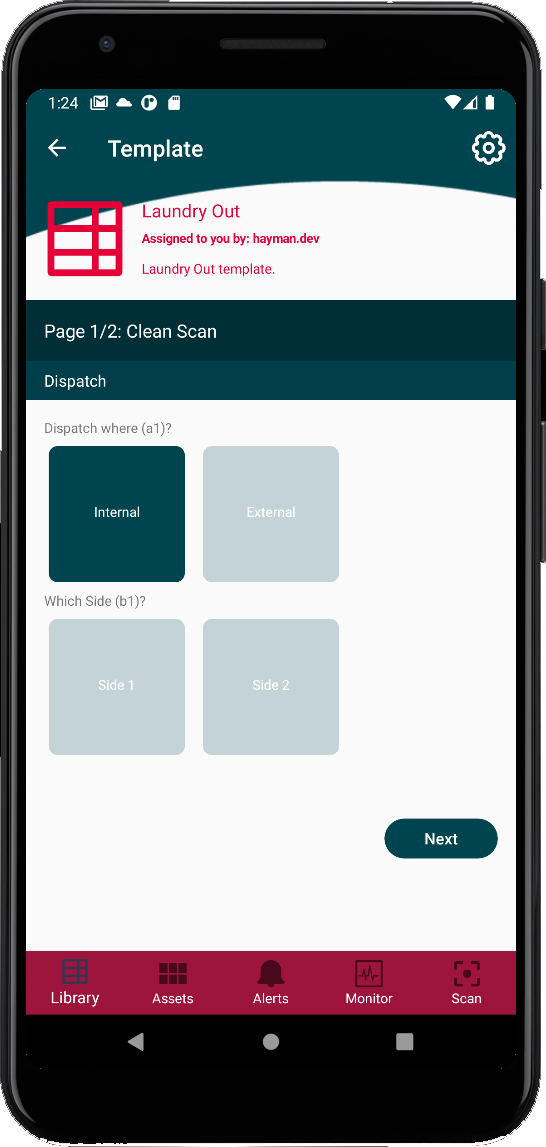
Customisable decision tree
ATP offers configurable decision trees that guide users through choices. This tree represents the final dispatch location, with as many levels as needed.
Dispatch location selected
Once the user completes their choices, ATP shows the final dispatch location. ATP treats locations as "assets", allowing powerful analysis of data throughout the lifecycle of your assets.
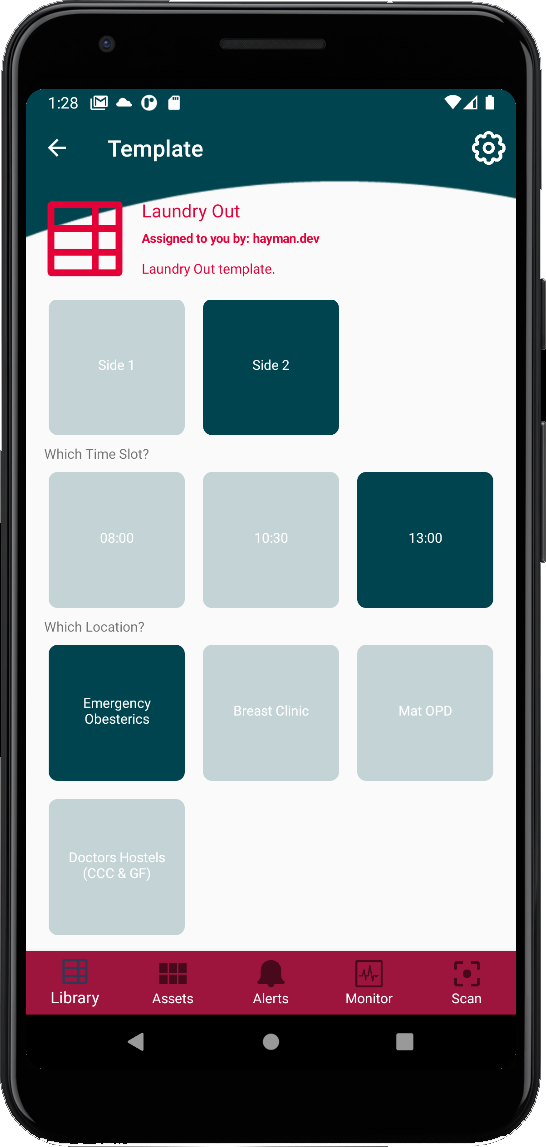
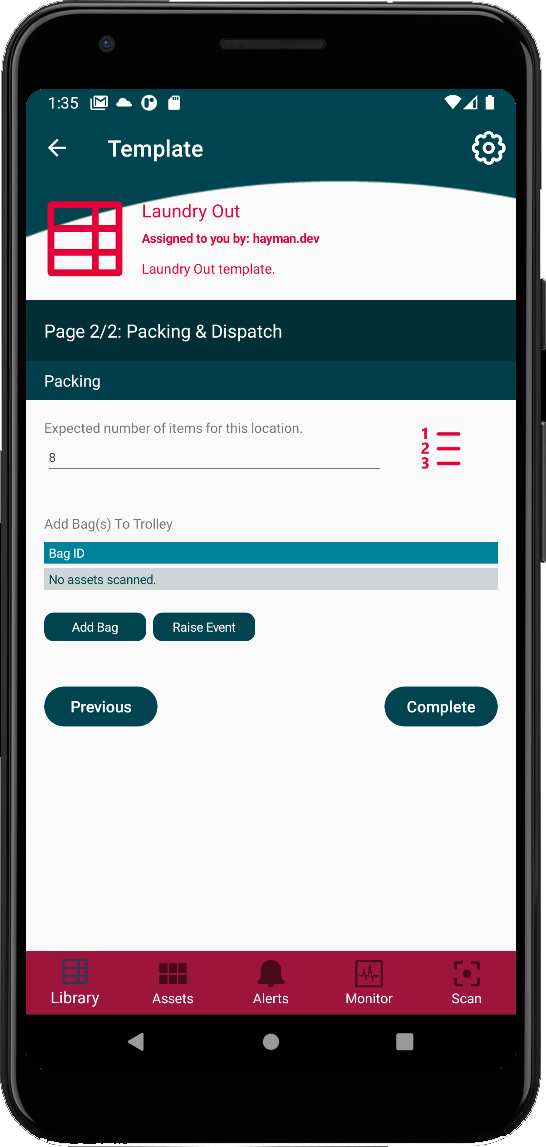
Despatch laundry asset count
With a location selected, ATP shows what assets are required for that destination. More than one bag may need preparing, starting a new session for the user.
Prepare assets for dispatch location
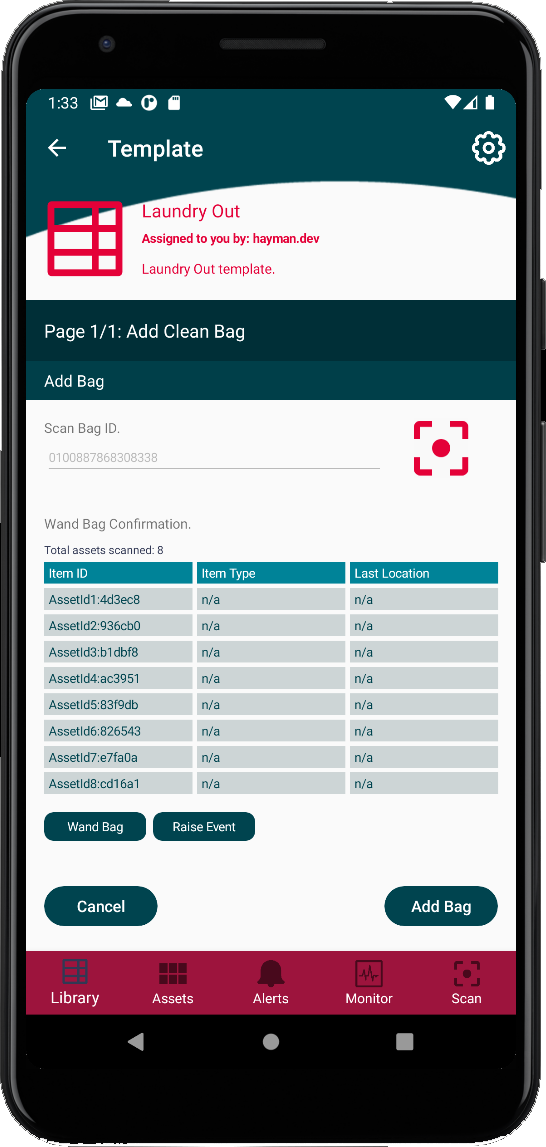
The user takes a clean empty bag, scans its UDI, and adds items as required. Once filled, the bag is wanded to capture RFID tags.
Laundry-out workflow complete
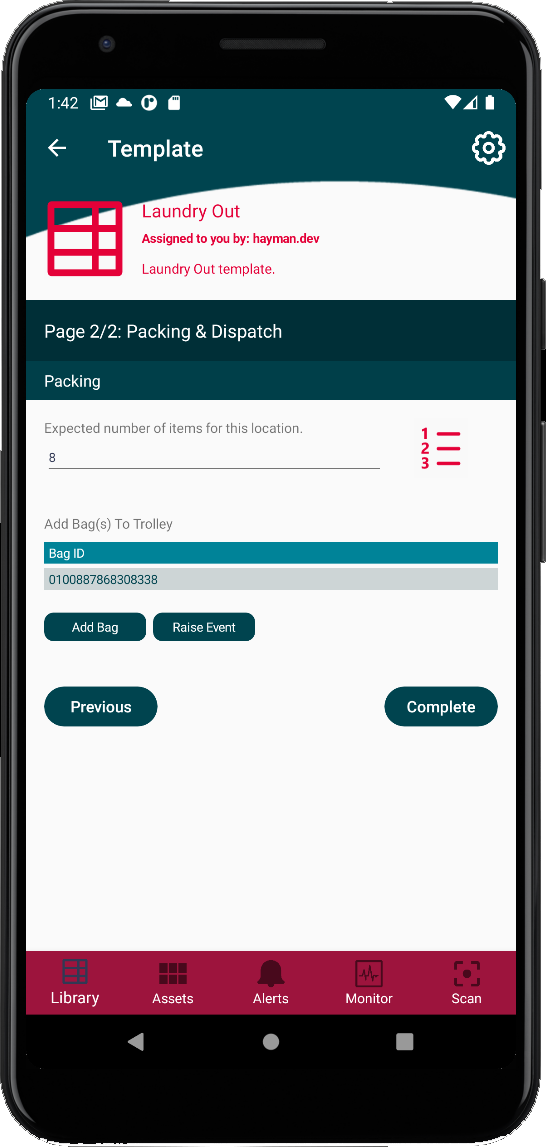
With the bag completed, the session is done and the bag is ready for dispatch. Additional templates can capture trolley UIDs and transport details.
Download fact sheets
Want to see this workflow in action?
We'll walk you through the bulk laundry workflow live, answer your questions, and show you how it can be adapted to your specific process.