
Setup & support
Everything you need to get Multi-Model AI Proxy running - the illustrated getting-started guide, Local LLM configuration, a reference of every supported model, FAQ and troubleshooting.
What you need before you start
Operating system
Windows 10 1809 or later for the WinUI 3 dashboard. .NET is bundled with the Store build.
Visual Studio 2026
The proxy plugs into GitHub Copilot's BYOK (Bring Your Own Model) window - via the Ollama provider.
API keys
A key for each cloud provider you want to use - DeepSeek, Mistral, Mimo, Z.ai, xAI, Qwen or OpenRouter. Local LLMs need none.
Ports
Port 5000 (cloud proxy) and 6000 (local proxy) must be free - both configurable in Settings.
From Store to first prompt in eight steps
If you can add an Ollama endpoint to Visual Studio, you can add every provider on this page.
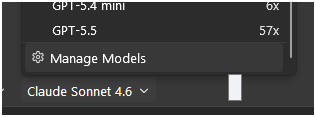
Open Manage Models
Open Visual Studio 2026 and open "Manage Models" in the GitHub Copilot model chooser.
Choose the Ollama provider
Select "Ollama" from the provider dropdown. This is the hook the proxy presents itself through.
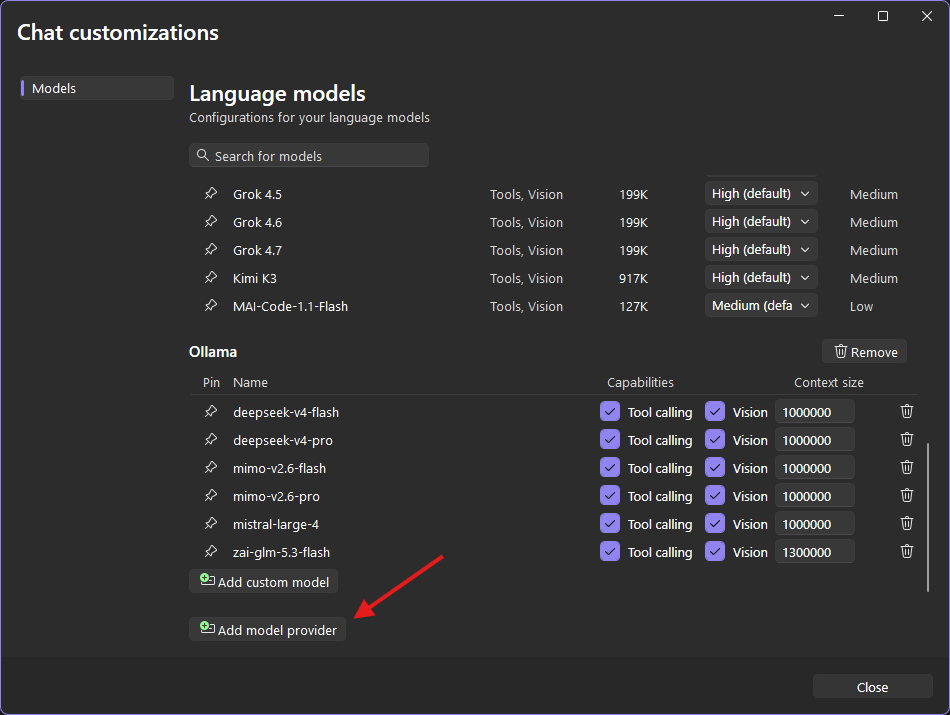
Why Ollama?
Visual Studio already knows how to talk to Ollama - the proxy simply answers those calls and routes them to the provider you actually chose.
Add the proxy URL
Set the URL to http://localhost:5000/ (or your custom port from Settings), then tap "Add".
- check_circleCloud models - port 5000
- check_circleLocal models - port 6000
Add keys & select your model
Use the Models page to add API keys for any provider - or configure local LLM servers. In Copilot chat, the model chooser now shows your configured models.
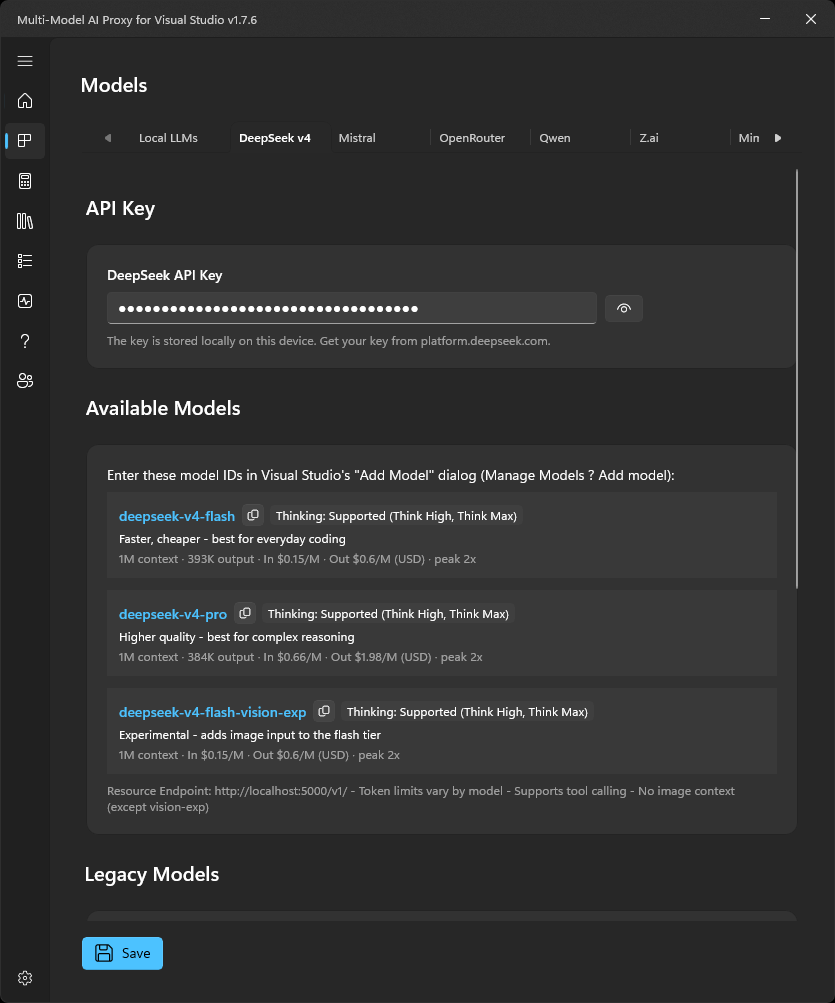
- check_circleDeepSeek • Mistral • Mimo • Z.ai • xAI • Qwen • OpenRouter
- check_circleLocal LLM servers on your network
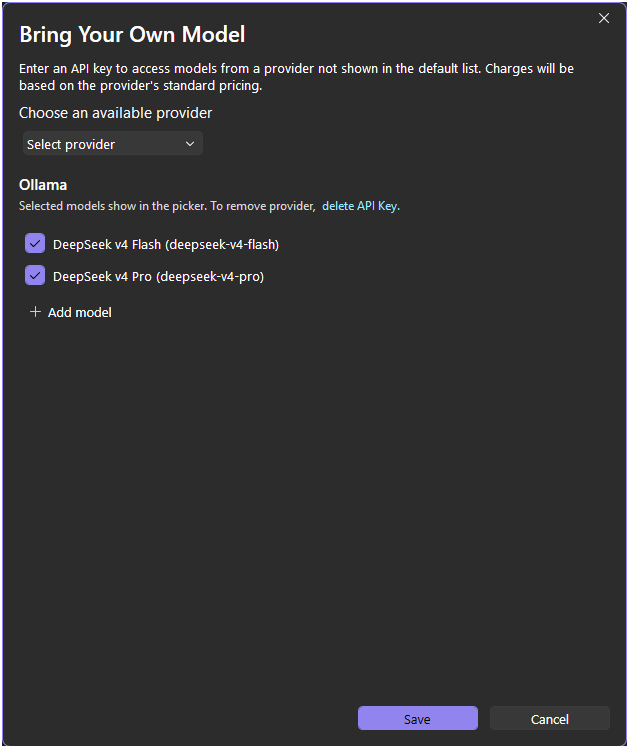
Add your provider models
Tap "Add model" and enter the details for any supported provider, this will be the model name, e.g., mistral-large-4 or deepseek-v4-pro
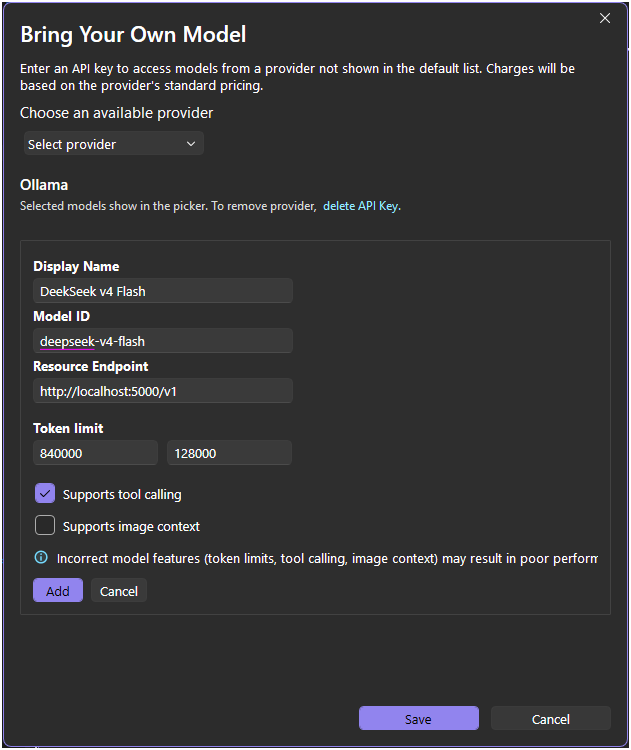
Verify your configuration
You should see something like this. Repeat step 5 for each provider model you want to configure.
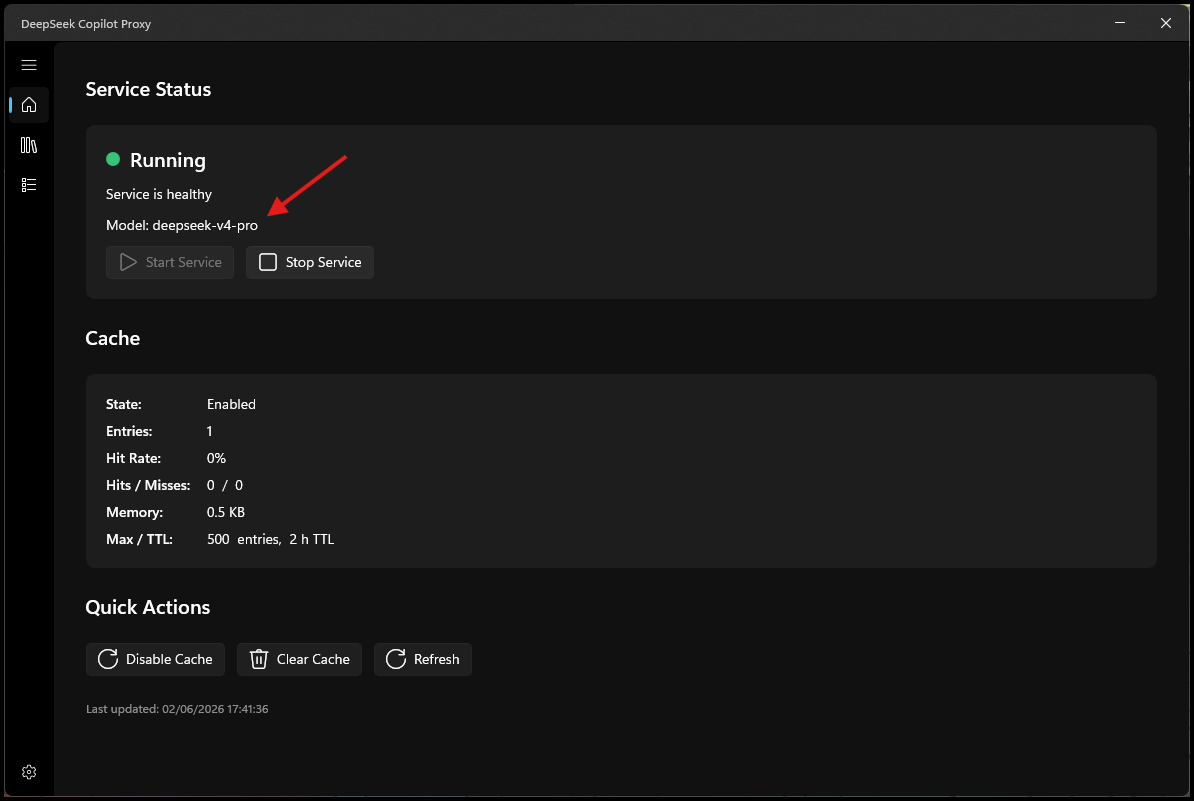
Start coding
Ensure the proxy is running, select your model in the Copilot chat window - and start coding. Switch between models at any time without restarting the proxy.
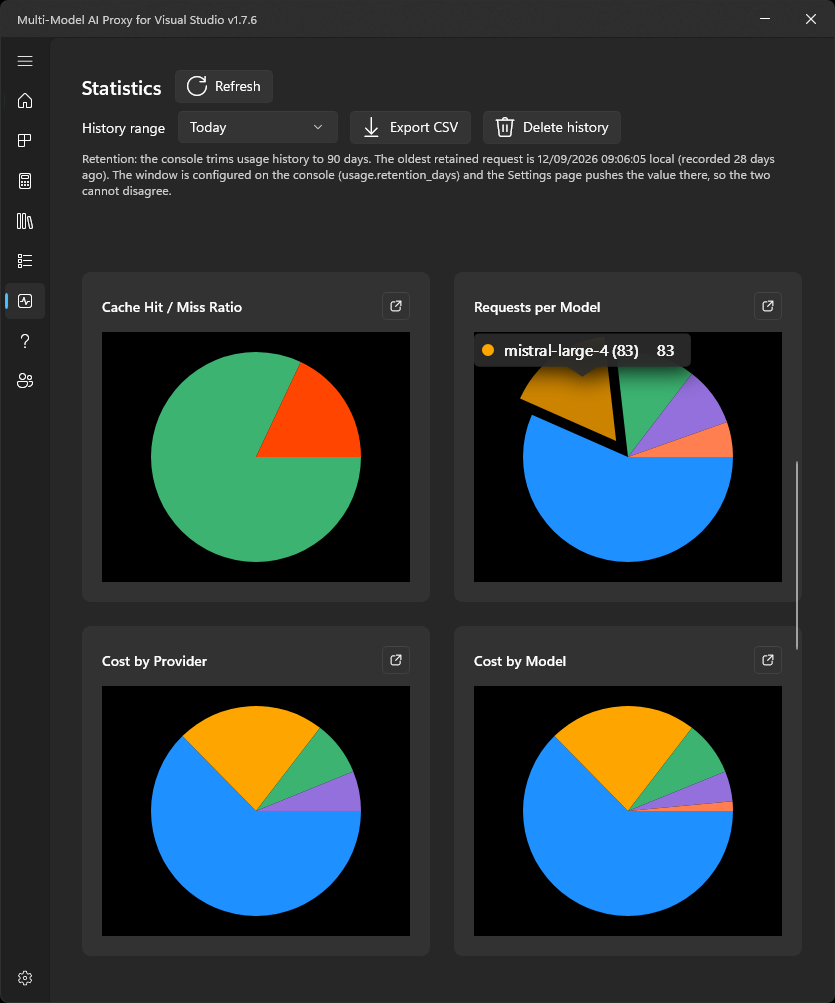
Track your usage and spending
Keep an eye on your model usage. Find out how many requests you have made and what they cost, and track the usage of your most popular models.
Your models. Your hardware. Your data.
Set up a local LLM server on Linux, macOS or Windows - hosted on your local network to offload LLM resource usage from your main development machine. The proxy is a transparent bridge: VS Copilot talks to localhost:6000, and the proxy forwards to the correct server.
Host the model on your network
-
1
Set up a server on your local network - a dedicated machine, a VM, or even WSL on your dev box.
-
2
Use llama.cpp, LM Studio, Ollama or vLLM to host - all provide a simple HTTP API compatible with the OpenAI chat completions format.
-
3
Download and run your model of choice on the server, following the tool's instructions.
-
4
Note the URL and port the server listens on - e.g.
http://192.168.1.100:8000.
You may have downloaded several models but can usually only run one at a time. To switch, stop the current model process and start another - the proxy can't start or stop models for you.
Use zero-config tools like Tailscale to make your local LLM server available remotely - without opening ports on your router or firewall.
Add your server to the dashboard
-
1
Open the dashboard's Models tab, select Local Network LLMs, and click Add Local LLM.
Name
A friendly name - e.g. "llama.cpp on my-local-server".
URL
Hostname or IP without http:// - e.g. my-local-server or 192.168.1.100.
Port
Must be between 1024–65535, and not 5000 or 6000 unless you've changed those defaults - e.g. 8000 or 11434.
Description
Optional notes, e.g. "Runs all local LLMs".
Click Test Connection to verify the server is reachable - the proxy discovers and displays available model names. Then click Save. You can add up to 10 local LLM servers.
Turn on port 6000
Go to Settings → Proxy Configuration, scroll to the Local Proxy Configuration section and toggle Enable Local Proxy to On (default port 6000). Click Save and the local proxy restarts with your configuration.
You don't need to define a model name - just the endpoint. The proxy automatically discovers available models at startup and re-discovers them if the model changes.
Port rules: LLM server ports must be between 1024–65535, and must not conflict with the cloud proxy port (5000) or local proxy port (6000) unless you've changed those in Settings.
Managing Local LLMs
- editEdit - the pencil icon next to any configured LLM.
- deleteDelete - the trash icon, with confirmation before removal.
- refreshRefresh Models - re-queries the server's available models.
- toggle_onEnable/Disable - temporarily disable a server without deleting it.
- tagLimit - you can add up to 10 local LLM servers.
Point Copilot at the local proxy
- 1
Open the model selector in Visual Studio and choose Manage Models.
- 2
Choose Ollama as the provider.
- 3
Click + Add Model with these settings:
Model Name
A friendly display name - e.g. "Local Mistral M-128B".
Model ID
Must exactly match the model name the proxy discovered - e.g. unsloth/Mistral-Medium-3.5-128B-GGUF.
Resource Endpoint
http://localhost:6000/v1
API Key
Leave blank - not required for local LLMs.
Switching models? Change the active model on your server, send a new chat request and the proxy auto-detects the change - or click Refresh Models to force it. Update the Model ID in VS if the name changed.
Every supported provider, listed
All cloud models use the same endpoint - http://localhost:5000/v1/ - with image context and tool-calling support varying by provider.
DeepSeek v4
deepseek-v4-flash • deepseek-v4-pro
No image context • tool calling only • token limit 840000 / 128000. The flagship - fast and cheap, or highest quality.
Mistral
mistral-large-latest • mistral-small-latest • mistral-medium-latest • mistral-codestral-latest
No image context • tool calling only • no thinking mode.
Mimo (Xiaomi)
mimo-v2.5-pro • mimo-v2.5 • mimo-v2-omni • mimo-v2-flash
Image context + tool calling • token limit 840000 / 128000.
Z.ai (GLM)
zai-glm-5.2 • zai-glm-4.7 • zai-glm-5v-turbo (and more)
Image context + tool calling • free-tier models available • token limit 840000 / 128000.
xAI (Grok)
xai-grok-4.3 • xai-grok-4.1 • xai-grok-4.1-mini • xai-grok-4.1-nano
Image context + tool calling • token limit 840000 / 128000.
Qwen (Alibaba)
qwen-qwen3.7-plus • qwen-qwen3-coder-plus • qwen-qwen3-vl-plus (and more)
Image context (VL models) + tool calling • free-tier models • token limit 840000 / 128000.
OpenRouter (Universal Aggregator)
Model format: openrouter-{provider}-{model} - e.g. openrouter-anthropic-claude-opus-4.8
300+ models from every major lab through one key. Browse the full catalogue at openrouter.ai/models.
Local LLMs (your network)
Any model hosted by llama.cpp • Ollama • LM Studio • vLLM
Models are auto-discovered from your servers - no API key, no per-token bills. Up to 10 servers, each with editable name, URL, port and description.
The things everyone asks us
How do I check if the proxy is running?
Open the Dashboard's Overview page - a green dot and "Running" mean the proxy is active. The system tray icon shows a green dot overlay when the service is running.
What is the cache and how does it work?
The cache stores reasoning/thinking responses from supported providers (DeepSeek, Mistral, Z.ai, Qwen) in memory and on disk (cache.json) - so multi-turn requests don't re-send the same reasoning upstream. Speeds up responses and cuts API costs. TTL defaults to 2 hours; both TTL and max entries are configurable in Settings.
How do I switch between models or providers?
Change the model in the GitHub Copilot model chooser. The proxy supports DeepSeek, Mistral, Mimo, Z.ai, xAI, Qwen, OpenRouter and local LLMs - configure API keys on the Models page first. Changes take effect immediately, no restart required.
Where are my API keys stored?
Locally on your PC in the Dashboard's local settings. They're only used by the proxy to authenticate calls to the relevant provider APIs - never shared with anyone else.
Why restart after changing the port?
The port is bound when the proxy's HTTP listener starts. Changing it requires a restart - which the Dashboard handles automatically when you save. Model and cache settings apply instantly, no restart.
How do I view recent requests?
The Logs page shows a real-time feed of every proxied request - endpoint, model, session ID, timestamp, response duration, and whether streaming or cached reasoning was used. Tap any row for full details.
Why does Visual Studio say "No model available"?
Check the proxy is running (Overview page), that the Ollama provider in Manage Models points at http://localhost:5000/, and that your provider API key is valid with sufficient credits.
Can I use it with multiple Visual Studio instances?
Yes - the proxy is a local HTTP server, so any number of Visual Studio instances (or other tools) can connect simultaneously. Requests are logged and cached centrally, and the cache is shared across all clients.
What is the model override in the system tray?
The tray's "Switch Model" menu lets you force the proxy to use a specific model for every request, overriding whatever your agent selected. It applies at the proxy level - affecting all connected IDE instances instantly. A padlock icon on the Overview page and an "(override)" marker in the tray show when it's active. Choose "Follow Copilot's model" to clear it.
Quick fixes for the usual suspects
Connection refused
Ensure the local LLM server is running and the URL/port are correct. Use the "Test Connection" button in the dashboard to verify before saving.
Model not found (400 error)
The model name in VS BYOK must exactly match the name the proxy discovered. Click "Refresh Models" and check the exact name before retrying.
Model changed but VS still uses the old one
The proxy auto-refreshes on miss - just send a new chat request and it will re-discover the server's models. You can also click "Refresh Models" manually.
Local proxy won't start
Check that port 6000 isn't in use by another application. Change the port in Settings if needed and save - the proxy restarts with the new configuration.
Port conflict when adding an LLM
The LLM port must not be 5000 (cloud proxy) or 6000 (local proxy) unless you've changed those defaults in Settings. Choose a free port between 1024–65535.
Debug logging
Debug builds write detailed diagnostics to log files in the solution root (local-proxy-debug.log and mistral-debug.log) - containing model discovery results and request/response data. Release builds don't produce these files.
A real engineer will answer
Multi-Model AI Proxy is built and maintained by hayman.dev - no call centres, no ticket black holes. Email us and a real engineer will help you get sorted.
Tell us three things
-
1
Your Windows version - Settings → System → About.
-
2
The proxy version from the About page in the dashboard.
-
3
Which provider and model you were using, and the exact error.